

For a long time, I treated LLMs like super-smart text generators: I’d type a prompt, get an answer, and then manually copy-paste data back and forth to refine it.
But when I realized Google AI Studio lets you build autonomous agents, models that can think, search the web, write code, and act on their own, I decided to get my hands dirty and build one from scratch.
Here is the exact journey, step-by-step, including the Python code I used to take my agent out of the sandbox and into production.
1. Setting Up in Google AI Studio
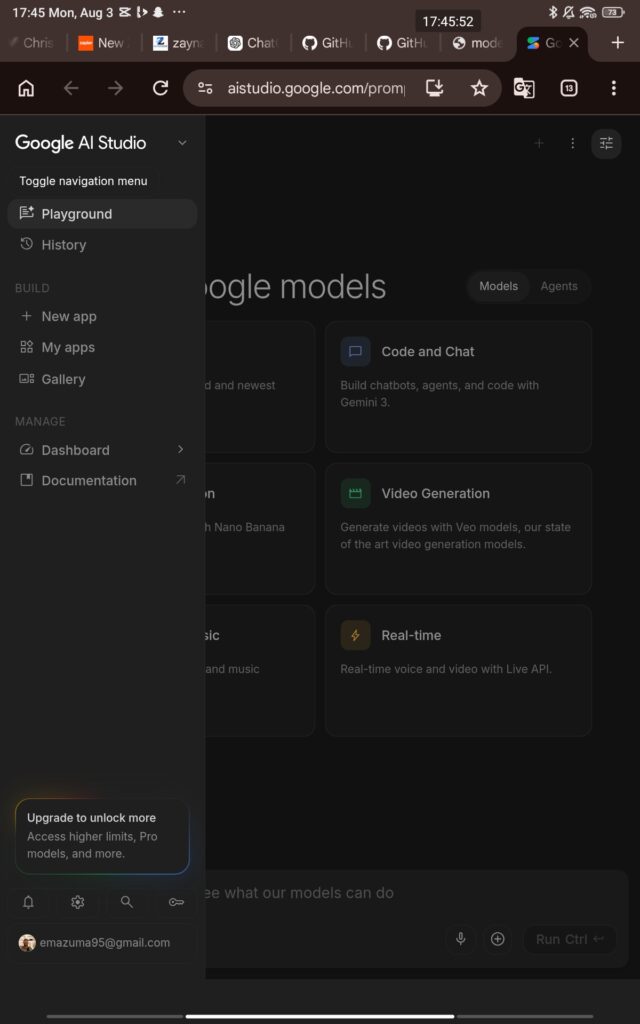
To get started, open aistudio.google.com and log in with Google account.
Instead of opening a standard chat interface, select the Chat Prompt setup and head over to the left-hand configuration panel. This is where you transform a regular prompt into a structured agent.
2. Setting System Instructions (Giving the Agent a Brain)
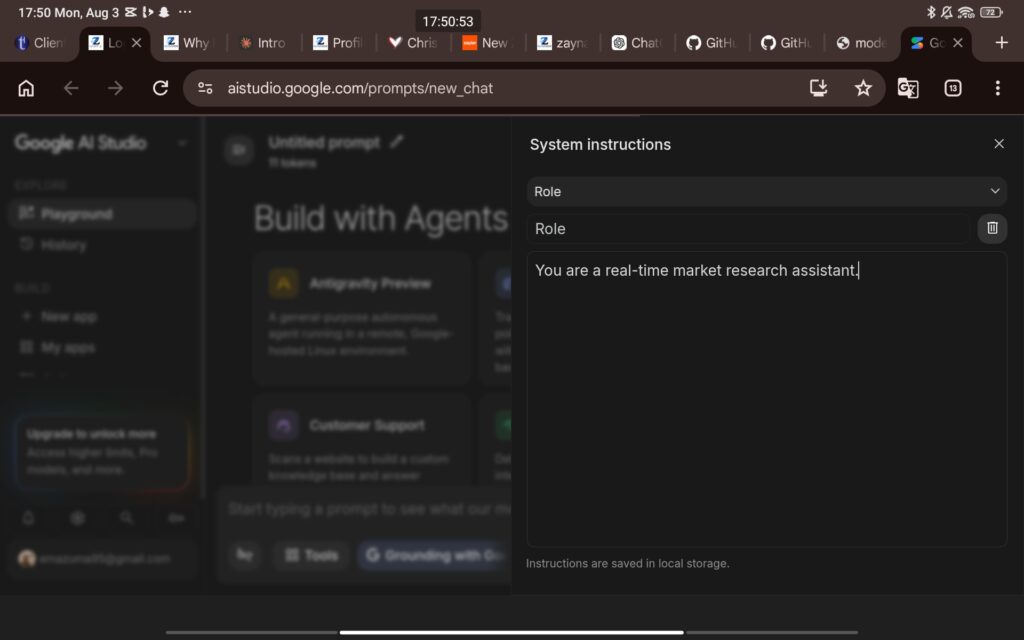
An agent without clear guidance is unpredictable. In the System Instructions box, I gave my agent a specific persona, goal, and strict rules to follow:
System Instructions: You are a real-time market research assistant.
- Goal: Help me research fast-moving tech trends and synthesize raw data into bullet points.
- Behavior: Always search for current facts before answering. Never guess or hallucinate statistics. If a problem involves calculations, use Python code to solve it accurately.
3. Giving My Agent “Hands” (Enabling Tools)
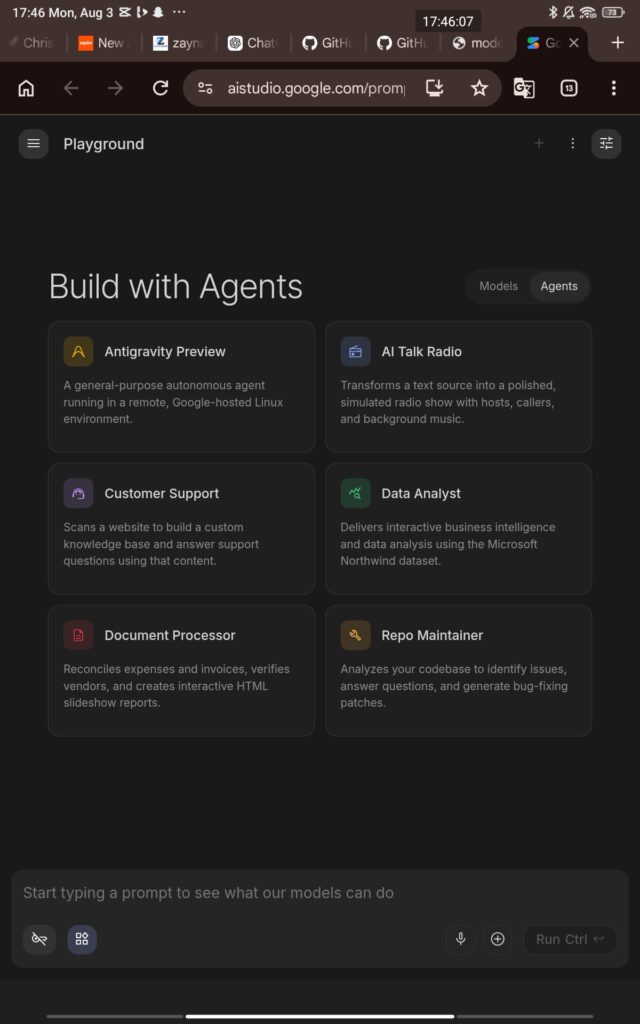
What makes an agent an agent is its ability to use tools dynamically. In the AI Studio interface, under the Tools section, check the three key options:
- Google Search: Gives the agent live internet access to verify facts.
- Code Execution: Gives the agent access to an isolated Python interpreter so it can run math, format data, or process logic.
- Function Calling: Lets the agent trigger custom backend functions when needed.
4. Testing in the Simulator
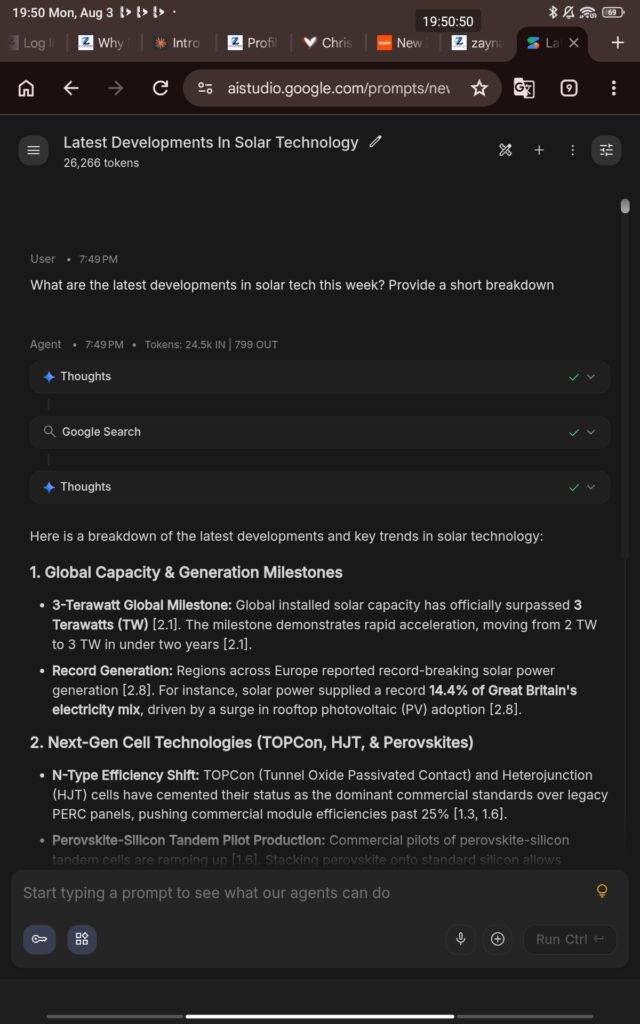
Type a test prompt into the simulator, Instead of answering right away, the agent will go through a dynamic reasoning loop:
- Thought: I need current news on solid-state batteries.
- Action: Issued a Google Search query for “solid-state battery developments [Current Date]”.
- Observation: Read through the top search results.
- Action: Wrote and executed a small Python script inside the code sandbox to compute the exact efficiency percentage differences.
- Final Output: Delivered a fully cited, mathematically verified summary in seconds.
5. Taking It Out of the Studio (The Code Setup)
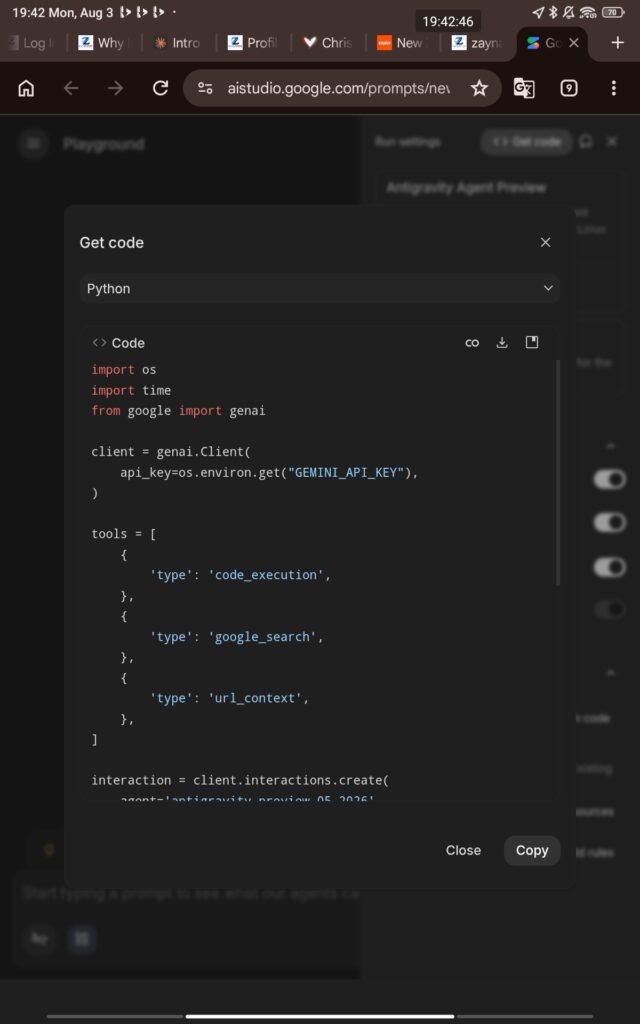
Once I was happy with how the agent behaved in the browser, I clicked Get Code at the top right to bring it into my local Python project.
Here is the clean, runnable code using the official google-genai SDK:
import os
from google import genai
from google.genai import types

# 1. Initialize the Google GenAI Client
client = genai.Client(api_key=os.environ.get("GEMINI_API_KEY"))

# 2. Define System Instructions and Enable Built-In Tools
config = types.GenerateContentConfig(
    system_instruction=(
        "You are a real-time market research assistant. "
        "Always use search grounding for factual or recent queries, "
        "and use code execution for calculations."
    ),
    # Enable dynamic tool usage: Search Grounding + Python Interpreter
    tools=[
        {"google_search": {}},
        {"code_execution": {}}
    ],
    temperature=0.2,
)

# 3. Prompt the Agent
prompt = "What are the latest breakthroughs in solid-state batteries this month, and how does energy density compare to standard lithium-ion?"

print("Agent is thinking and gathering data...\n")

# 4. Generate Content with Automated Tool Calling
response = client.models.generate_content(
    model="gemini-2.5-flash",
    contents=prompt,
    config=config
)

# 5. Output the Agent's Final Synthesized Response
print("--- Agent Response ---")
print(response.text)
Key Takeaways From My First Build
- Start simple: Let built-in search and code execution handle the heavy lifting before writing complex custom functions.
- Be strict with System Instructions: Clearly define when the agent should stop searching and how it should format its answers.
- Move to code fast: Visual playgrounds are great for testing prompts, but hooking the agent up to the SDK is where the true automation power unlocks.
Check: How I used AI automation to handle customer inquiries without doing everything manually

I enjoy building for the web, exploring new technologies, and finding practical ways to use AI and modern tools to solve problems and make everyday work more efficient. My interests span web development, artificial intelligence, software, digital tools, and the many ideas shaping the future of technology.
Through this blog, I share what I learn, build, discover, and experience along the way. My goal is to make technology easier to understand, share useful insights, and document practical knowledge that can help other developers, creators, and tech enthusiasts.
Technology is constantly changing, and I believe the best way to keep up is to stay curious, keep experimenting, and never stop learning.
- How to Automatically Deliver a PDF After Successful Payment – September 17, 2026
- Why a Payment Gateway Can Say “Successful” While Your Website Shows “Failed” – September 17, 2026
- How to Build Subscription-Based Websites Without Developing an App. – August 21, 2026